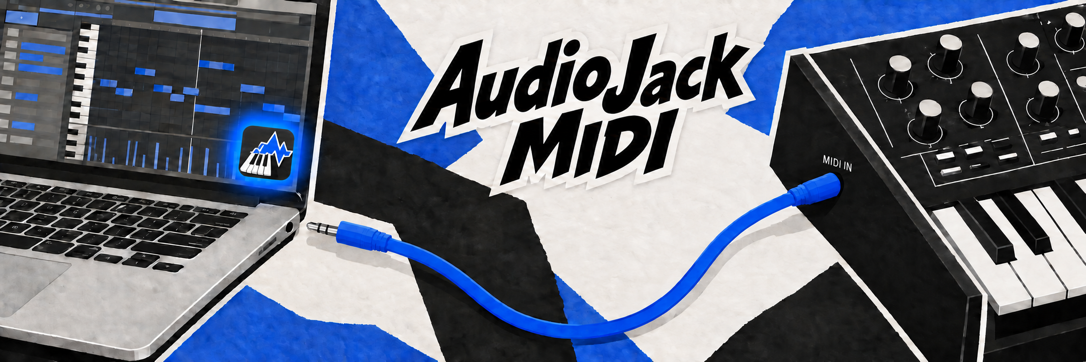
AudioJack MIDI lets you send MIDI through an audio output, such as the 3.5 mm headphone jack, without a separate MIDI interface. It creates a virtual MIDI destination on your Mac and encodes incoming MIDI messages as an audio signal.
Connect to a TRS MIDI input with a normal 3.5 mm stereo cable, or to a 5-pin DIN MIDI input with a correctly wired 3.5 mm TRS-to-DIN MIDI cable. The app supports Type A and Type B wiring.
Download
Source code on GitHub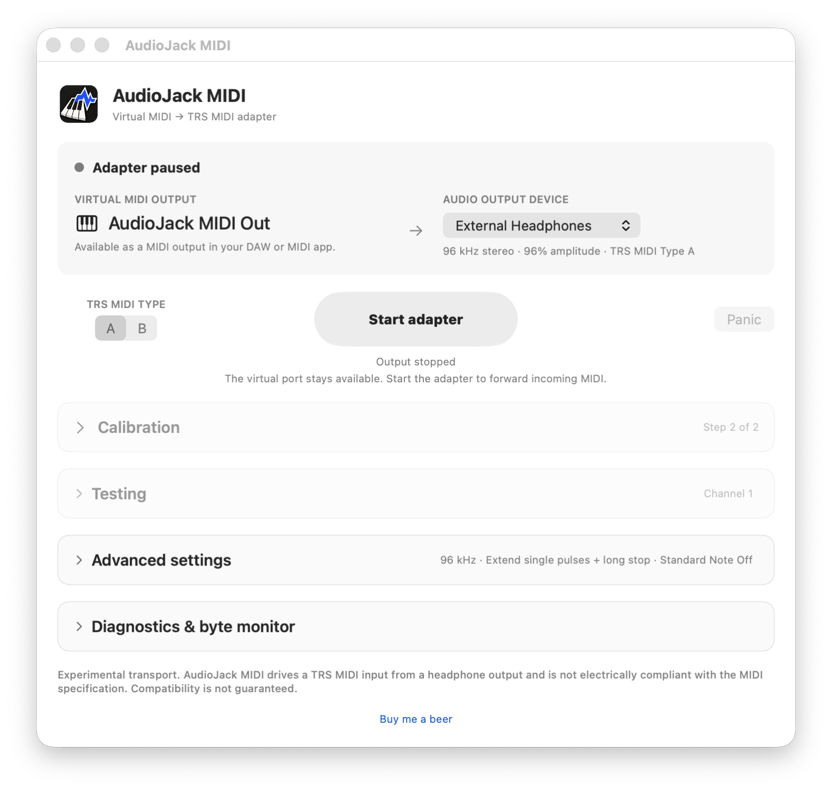
How to use it
- Connect your Mac’s headphone output (or other audio interface) to your hardware’s MIDI input.
- Open AudioJack MIDI, select the audio output and wiring type, then start the adapter. Follow Calibration to set the signal level and message spacing.
- In your DAW or MIDI app, select AudioJack MIDI Out as the MIDI output.
Compatibility: This is an experimental transport and is not electrically MIDI compliant. Reliability depends on the audio output, cable wiring and receiving hardware. Use a MIDI input, not headphones or speakers.
Installing the app
Unzip the download and move AudioJack MIDI to Applications. This build is ad-hoc signed but not notarized by Apple, so macOS may block it the first time you open it.
- Try to open AudioJack MIDI once, then dismiss the warning.
- Open System Settings → Privacy & Security. On Monterey, open System Preferences → Security & Privacy → General.
- Scroll to Security and click Open Anyway beside the AudioJack MIDI message. Confirm by clicking Open.
You may be asked for your Mac login password. Only approve a copy you trust. Apple’s instructions.
Created by Paulo Ricca